

Your district has partnered with CI Solutions to provide a complete ID card printing program for participating campuses. This page is your setup hub.
Use it to confirm what is included in your program, complete installation steps, access Badge, prepare for training, and find support resources for district and campus teams.
 Tip: Bookmark this page for quick access.
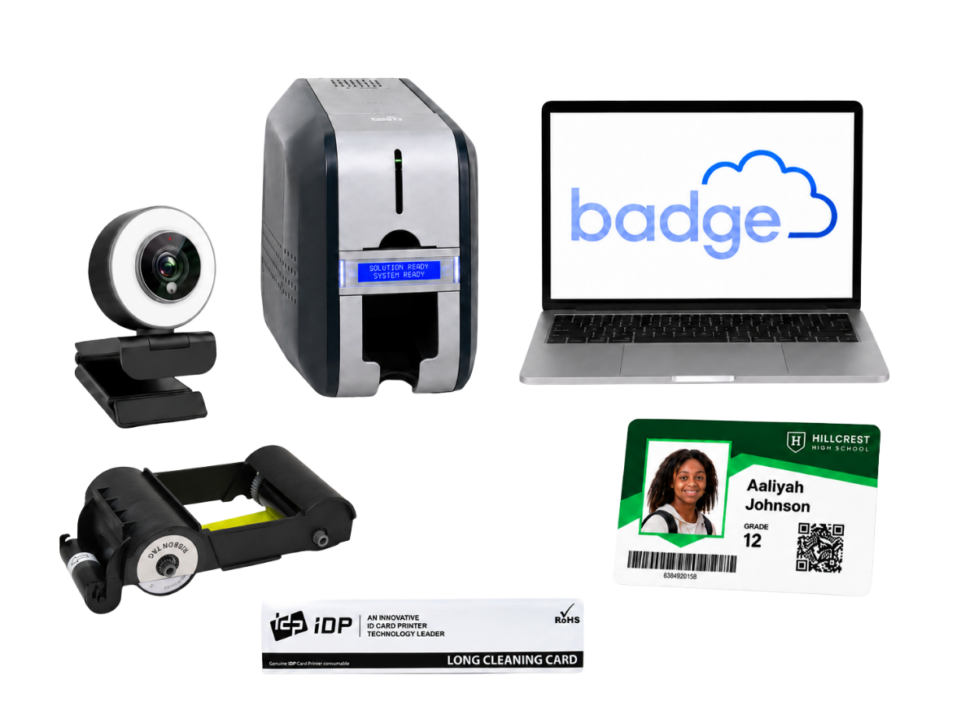
Open your box to confirm you’ve received:
Exact kit contents may vary by district or program configuration. If something appears to be missing, contact your CI Solutions Project Manager or our support team
Badge is the online platform used to manage records, images, and ID card printing. Depending on your program setup and permissions, users may have access to one or more Badge modules.
Used to manage lists, records, and images.
Used to print and edit individual ID cards.
Used to print and edit multiple ID cards at once. Batch Print can be enabled for users who need to print cards in larger groups.
Most users begin with access to Secure Share and ID Print. If your team needs Batch Print, your CI Solutions Project Manager can help confirm setup requirements and user access.
Badge users typically fall into two categories: Owners and Operators.
Owners are typically district staff or designated program administrators with the highest level of access and permissions in Badge. Owners help manage setup, user access, training coordination, and program rollout across one or more campuses.
Operators are typically school site staff or student employees who use Badge to create and issue ID cards on a regular basis. Operators may print student, staff, visitor, or replacement cards directly at the campus level.
Before you start: Make sure you have access to a computer with administrative privileges and an internet connection.
Before installation begins, confirm that the designated Badge workstation and network are ready for setup.
Review the local install requirements, Print Service requirements, and domain whitelist information to ensure the workstation has the required permissions, internet access, and configuration.
Resources:
Download and install the CIX900 printer driver before connecting the printer to the computer.
Resources:
CIX900 Driver and Installation Instructions
Important: The printer driver must be installed before connecting the printer to your computer.
Install Print Service on each device that will be used for Badge printing.
Follow the support article linked below for step-by-step installation instructions.
Most clients will install cis_printsvc_setup_build076A.zip. Only install cis_printsvc_setup_build113.zip if your CI Solutions Project Manager specifically instructs you to use that version.
Resources:
Once the printer driver and Print Service are installed, connect the printer and camera to the designated Badge workstation using the included cables.
Badge Users will receive an email from CI Solutions with instructions to reset their password and access the Badge platform.
Resources:
Badge Users should check their inbox and junk folder for their password reset email. Portal Owners can create or edit accounts or contact CI Solutions for assistance.
Identify the staff members who will operate the ID card program at the school site level. These users will be your Badge Operators.
Use the campus email template and intro sheet to notify principals and campus staff about the program, explain what their teams can expect, and help support a smooth rollout.
Resources:
Review the materials in the Badge Support Hub for step-by-step workflow instructions. These resources can help you support campus users with record management and printing, or print cards directly when needed.
As a reminder:
Secure Share: Used to manage lists, records, and images
ID Print: Used to print or edit one card at a time
Batch Print: Used to print or edit multiple cards at once
CI Solutions will schedule live training for the staff who will use or manage the program.
Training covers the Badge platform, card printing, photo capture, user access, and common troubleshooting steps.
A recording will be provided for anyone who cannot attend or needs to revisit the information later.

Before you start: Make sure your Badge account is active, your training is complete or scheduled, and your workstation has been set up for printing.
Log in to the Badge platform using the credentials or password reset email provided by CI Solutions.
Resources:
If you do not see your access email, check your junk or spam folder. If you still need help, contact your Portal Owner or CI Solutions Support.
Attend the live training session or watch the recording provided by CI Solutions.
Training will walk you through using Badge, taking or assigning photos, printing cards, and finding help when you need it.
After setup and training are complete, log in to Badge and print a test card to confirm the system is working as expected.
Use the instructions below based on what you need to print:
ID Print: For printing or editing one card at a time
Batch Print: For printing or editing multiple cards at once
Once your test card has been confirmed, your team is ready to use Badge to print student, staff, visitor, or replacement ID cards directly on campus.
Please follow your district’s guidelines for which card types your campus should issue.
Note: Badge Owners also have access to ID Print and Batch Print if they need to assist with printing or print cards directly.
Utilize Secure Share to manage cardholder records, assign photos, and prepare cards for printing.
In Secure Share, both Badge Owners and Operators can do the following:
Navigate to one or many lists
Add/Update/Delete lists
Add/Update/Delete records
Import CSV files into Badge
Export records from Badge
Additional resources for utilizing Secure Share:
Secure Share: Export Lists[3] Badge Setup
Secure Share: Import Lists[3] Badge Setup
Secure Share: Create A New List[3] Badge Setup
If your team needs help with Badge, printing, setup, or troubleshooting, please email the CI Solutions Support team at support@cardintegrators.com or submit a technical support request.

Full system deployment typically takes approximately 4–6 weeks, depending on project scope, card design approval, data readiness, and shipping requirements.
For large card production projects, cards can typically ship within 4 weeks of proof approval.
Yes. CI Solutions can ship to school sites during the summer if needed. However, materials are more commonly shipped to a district warehouse or central location, which can receive shipments at any time of year.
Key milestones are reviewed during the kickoff call and may vary by project. In general, the process includes confirming the scope of work, identifying key contacts, reviewing district needs, coordinating any additional CI Solutions team members, and sharing an initial artwork mockup.
Hardware typically ships within about a week, allowing IT teams to begin installation while artwork and card details are finalized. Once artwork is approved, card production generally takes approximately 4 weeks.
Data requirements are determined by the district’s card design and program needs. Common data fields may include student ID number, first and last name, first initial and last name, graduation year, campus, or other district-defined identifiers.
Card designs can be district-wide or school-specific, depending on whether the district wants one standard card design or campus-level branding.
Photos are optional and can be handled in several ways. CI Solutions can work with districts that use local photographers, help district IT build a photo repository, and support Badge layouts with or without student photos. Designs may also use silhouettes, icons, or other placeholders when photos are not available.
Yes. Cards can be produced without photos if that matches the district’s program needs and approved card design.
Card designs are customized based on district needs. If photos are not included, CI Solutions can adjust the design to support a layout without photos or with placeholder imagery.
Yes.
The kickoff process typically begins with a scoping call to review the project, confirm needs, introduce key contacts, and align on next steps. The CI Solutions Project Manager will stay in communication throughout implementation, including weekly updates as needed.
Yes. CI Solutions can provide campus-facing communication resources, including an intro sheet that explains what campuses are receiving, what to expect, and where teams can go for help.
If you’d like, you can use this email template to notify principals about the program with the intro sheet attached.
District leadership can use this email template and the campus intro sheet to explain that campuses are receiving an ID card printer, camera kit, Badge ID card management software, and starter accessories.
Campus communication should also identify which staff members will be responsible for using the program and explain that those users should attend training or review the training recording before printing cards.
CI Solutions schedules live training for staff who will be using the program. Training helps users get started with Badge, card printing, photo capture, user access, and common troubleshooting steps.
Training typically takes 30 minutes to 1 hour.
Yes. CI Solutions provides a recording for staff who cannot attend live or need to reference the training later.
CI Solutions typically holds one live training session and provides a recording for staff who cannot attend.
Training primarily covers how to use the program, including the Badge platform, card printing, photo capture, user access, and common troubleshooting steps.
Cards can be packaged in school-specific boxes to support campus-level distribution.
Shipments can be sent to a district warehouse or designated location for receipt confirmation.
Yes. CI Solutions can discuss replacement card and surplus inventory needs during the sales and planning process. A 10–20% surplus is generally recommended for the school year.
Tracking information is provided for shipments.
Schools with access to the Badge platform can print replacement cards on site as needed.
Campuses will have the tools needed to print and manage ID cards on site. The program includes an ID card printer, camera kit, Badge ID card management software, starter accessories, setup resources, training, and support.
Badge supports ID card management and can include QR codes, barcodes, and RFID in ID cards. Specific transportation system or parent app integrations should be confirmed based on the district’s configuration.
Principals should identify the campus staff who will be responsible for using the ID card printing program. Those users should attend training or review the training recording before printing ID cards on site.
Schools can access step-by-step guides for setup, troubleshooting, and more. If additional assistance is needed, teams can contact the CI Solutions Support team.
Yes. CI Solutions provides technical support through its support portal, including phone support at (562) 431-2594 ext. 2.
Yes. CI Solutions provides a support portal where users can submit a ticket and describe their issue.
Yes. CI Solutions provides a support resource with help articles and how-to guides for setup, troubleshooting, and more.
If a printer malfunction cannot be resolved using self-service resources and on-site troubleshooting, please submit a support ticket to receive assistance from the CI Solutions team.

Our goal is to make your ID program as simple and easy to manage as possible.
If your team needs additional assistance, we’re here to help:
📞 Call (562) 431-2594
📧 Email support@cardintegrators.com